

License Management
Muti-Tenant Management (MSP)
License Management
How to add and remove licenses for customer tenants in your MSP environment
Learn how to manage licenses for your customer tenants, including adding new licenses and removing existing ones through the customer settings interface.
License management allows MSPs to control which features and capabilities are available for each customer tenant. When you add a license, additional permissions may be required through a consent process to ensure proper functionality.
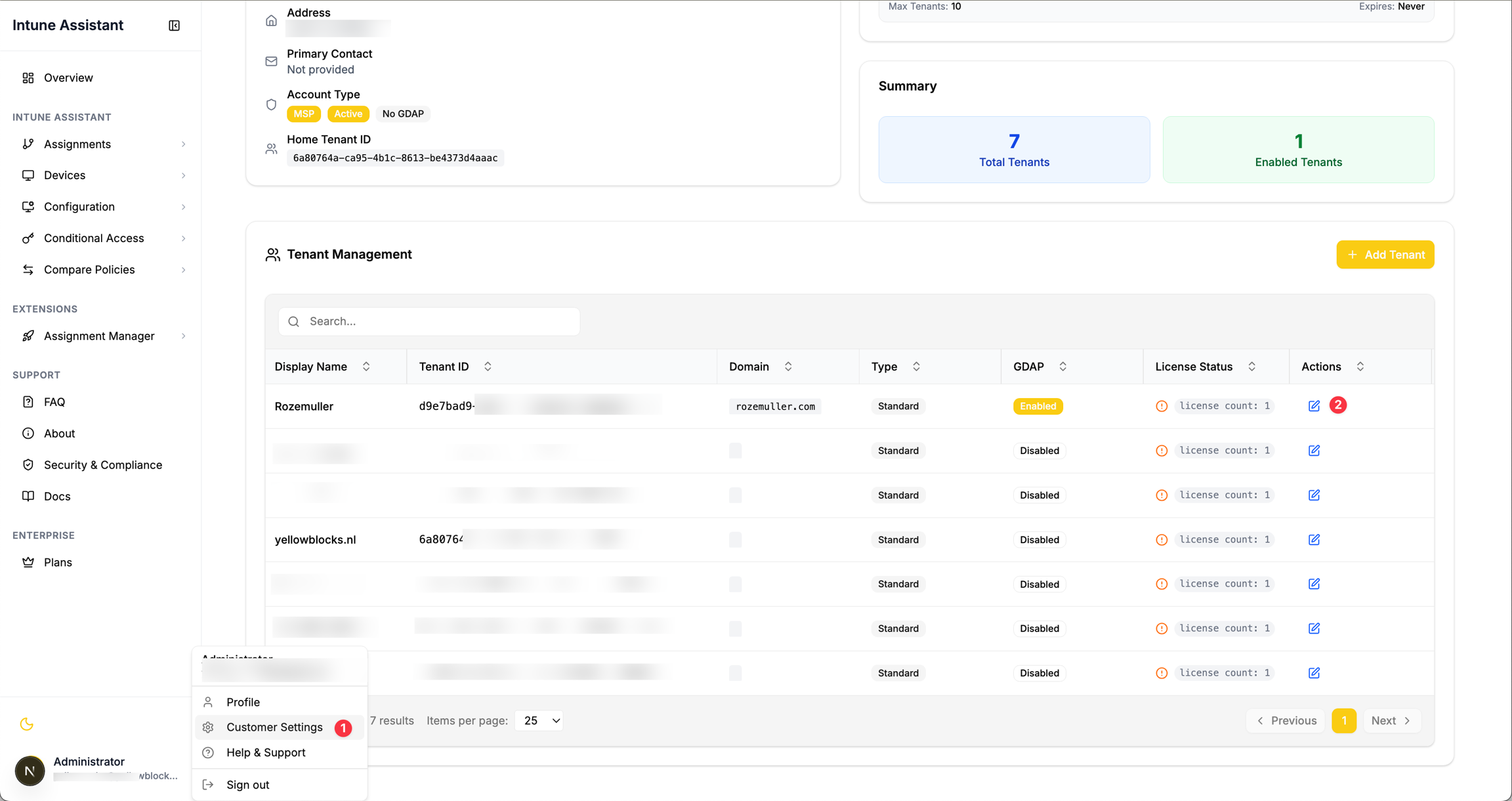
Navigate to Customer Settings
Go to Customer Settings in your MSP account
View your list of managed customer tenants
Access Tenant Actions
Find the customer tenant you want to manage
Click on the Actions button in the tenant row
The actions menu will display available options
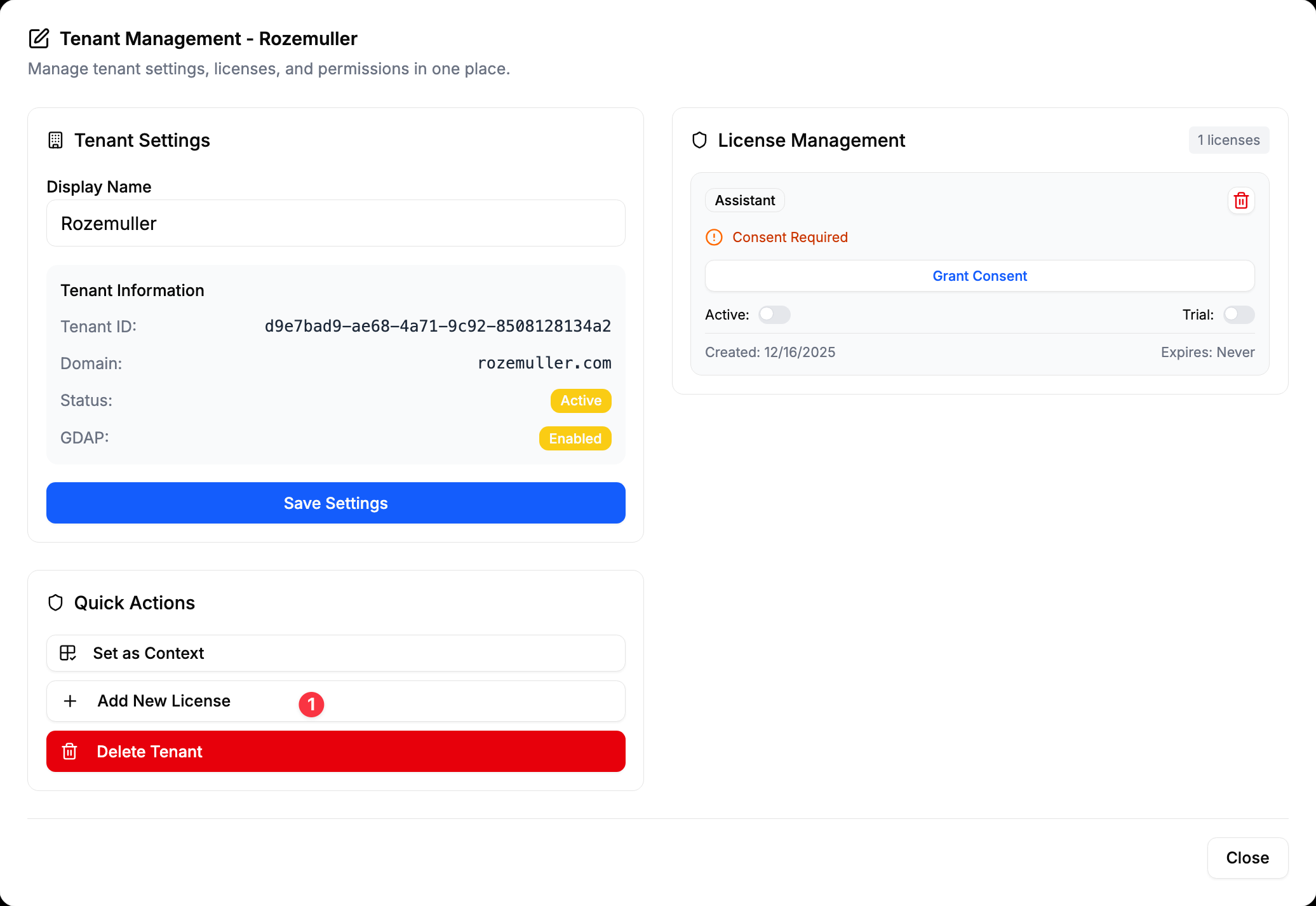
Click "Add New License"
From the actions menu, select Add New License
This opens the license addition dialog
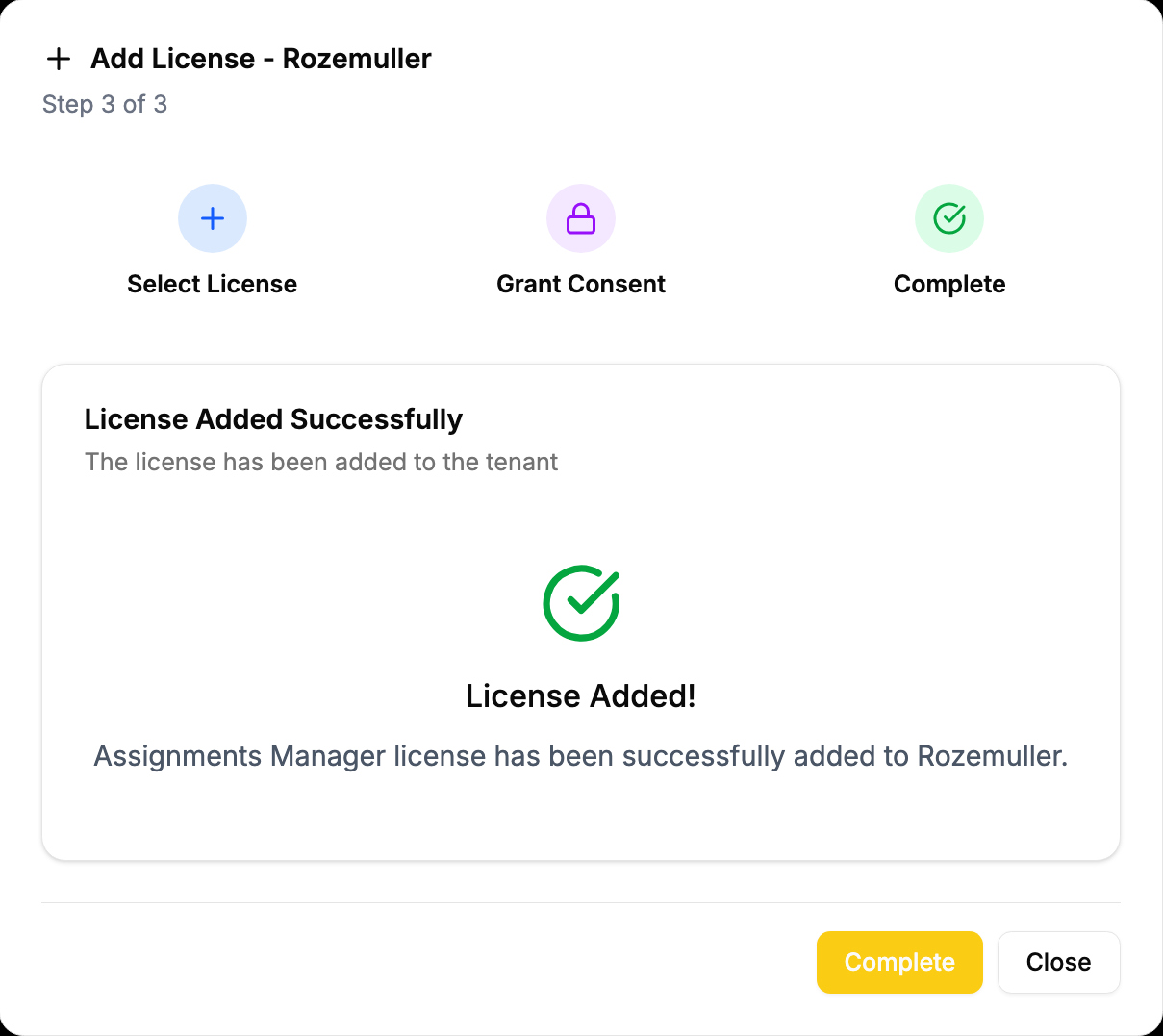
In the dialog, you can select the license type to add.
Select License Type
Choose the appropriate license for the customer
Review the features and capabilities included
Consider the customer's requirements and usage
Consent Process
Adding a license may trigger a consent request
Additional Graph API permissions might be required
Follow the consent workflow to grant necessary permissions
Confirm Addition
Review the license details and permissions
Confirm the license addition
The license is applied to the customer tenant
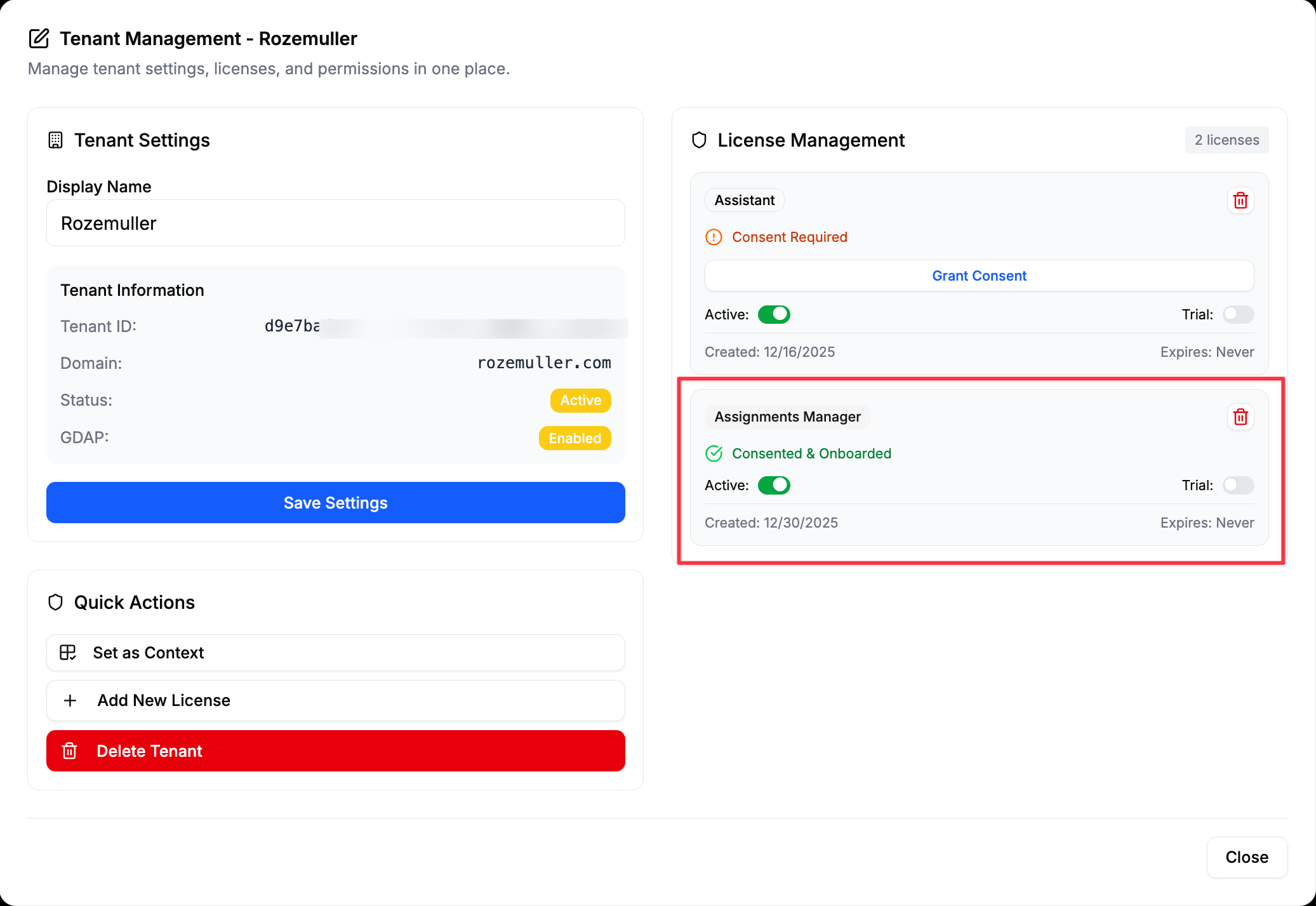
Consent Required
When adding a license, a consent process may be triggered to request the correct permissions needed for the new license features.
In the license management dialog again, you can also remove an existing license.
Select License to Remove
Choose which license to remove from the tenant
Review the impact of removing the license
Consider any dependent features or configurations
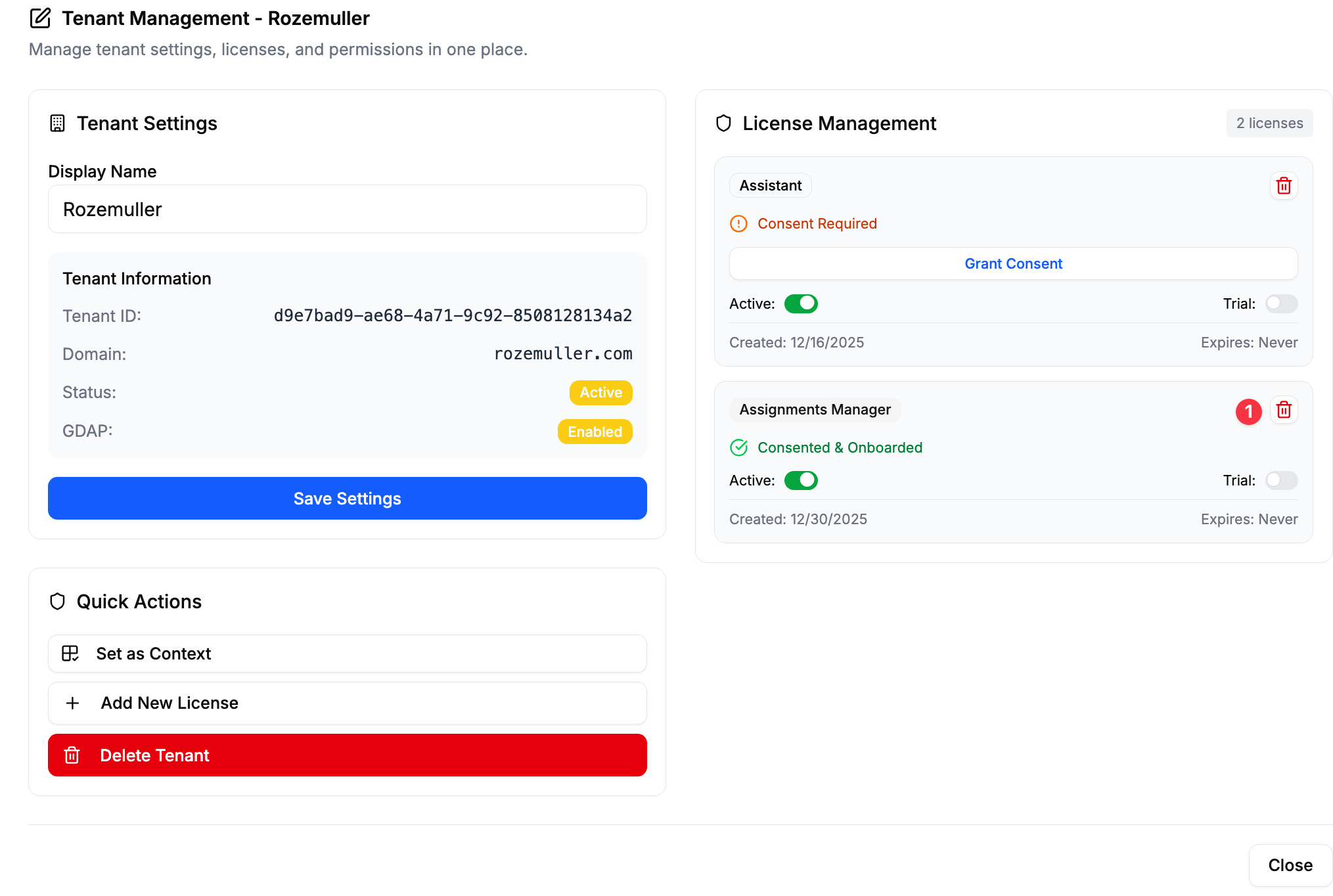
Confirm Removal
Understand the consequences of license removal
Confirm the deletion process
The license is removed from the customer tenant
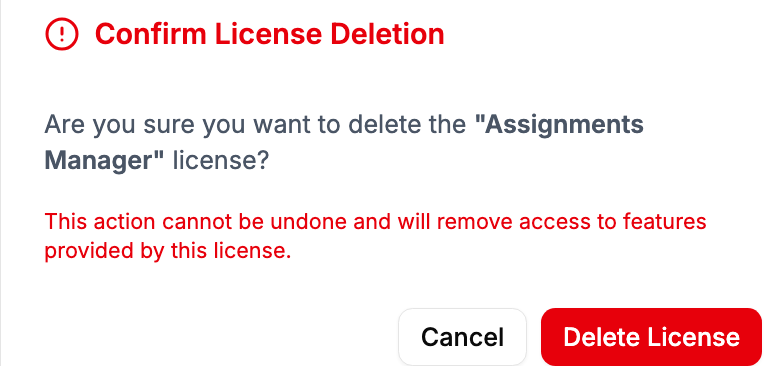
Feature Impact
This action cannot be undone and will remove access to features provided by this license.
Consent is typically required when:
Adding a new license that requires additional permissions
Upgrading license tiers with expanded capabilities
Enabling new features that need extra Graph API access
First-time setup of advanced functionalities
Consent Request Triggered
System identifies required permissions for the new license
Consent dialog appears with permission details
Clear explanation of why permissions are needed
Admin Consent Required
Global Administrator or appropriate admin role needed
Review of requested permissions and their impact
Decision to grant or deny the consent request
Permission Activation
Once consent is granted, permissions are activated
License features become available immediately
User can access newly enabled capabilities
Consent Best Practice
Review the permissions requested during consent carefully. Only grant permissions that are necessary for the intended license features.
In the tenants list, license status is indicated with icons:
No Consent needed: - Indicates no license is assigned
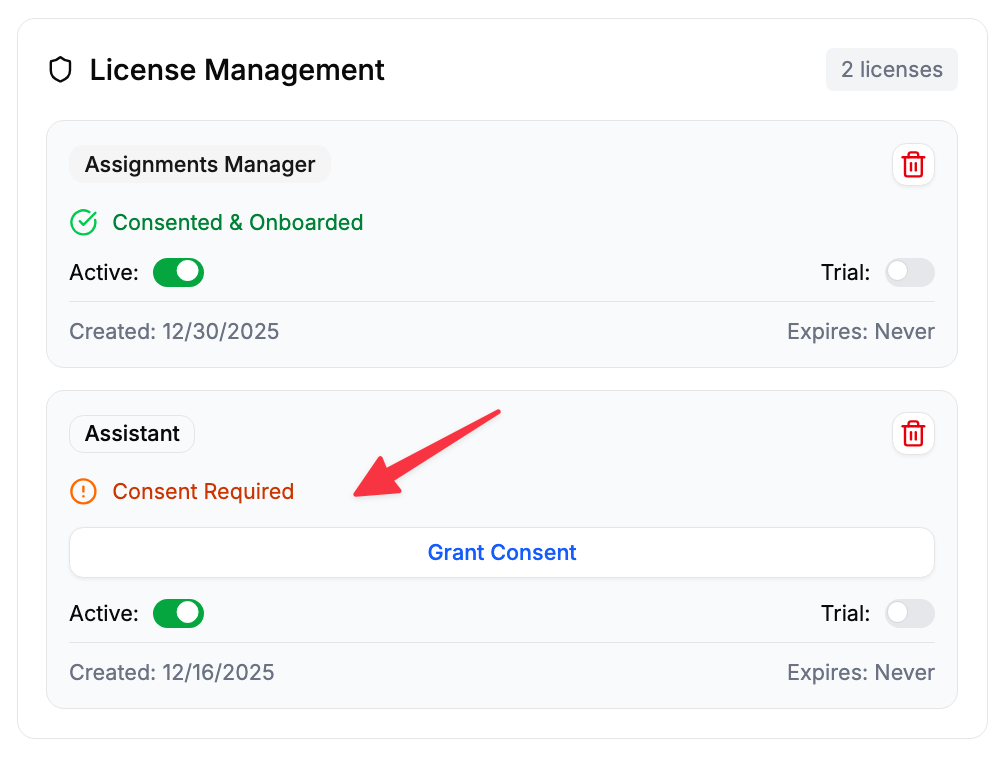
Consent needed: - Indicates consent is required for the license

If a license requires consent, you will see the red alert icon as show above. To provide consent go to the tenant using the action button and use the Grant Consent button.
Possible causes:
Customer (MSP home tenant) has not the correct license
Solutions:
Contact the support to verify your license
Possible causes:
Admin consent not properly granted
Permission conflicts with existing setup
Tenant policy restrictions, its not possible to grant the permissions
Solutions:
Ensure Global Administrator grants consent
Review existing permissions for conflicts
Check tenant conditional access policies
Possible causes:
Consent not completed successfully
Permission synchronization delay
License activation pending
Solutions:
Complete the consent process if pending
Wait for permission synchronization (up to 30 minutes)
Contact support if issues persist
License Flexibility
License management provides flexibility to scale features based on customer needs while maintaining security through proper permission management.
Multi-Tenant Permissions\ \ Required permissions for multi-tenant management including Partner Center and GDAP access Switch Tenants\ \ How to switch between customer tenants in your MSP multi-tenant environment