Getting Started
Managing Admin Consent
Handle consent requirements when new permissions are added to IntuneAssistant
Managing Admin Consent
When IntuneAssistant adds new features that require additional permissions, you may see a "Consent Required" notification.
When Consent is Needed
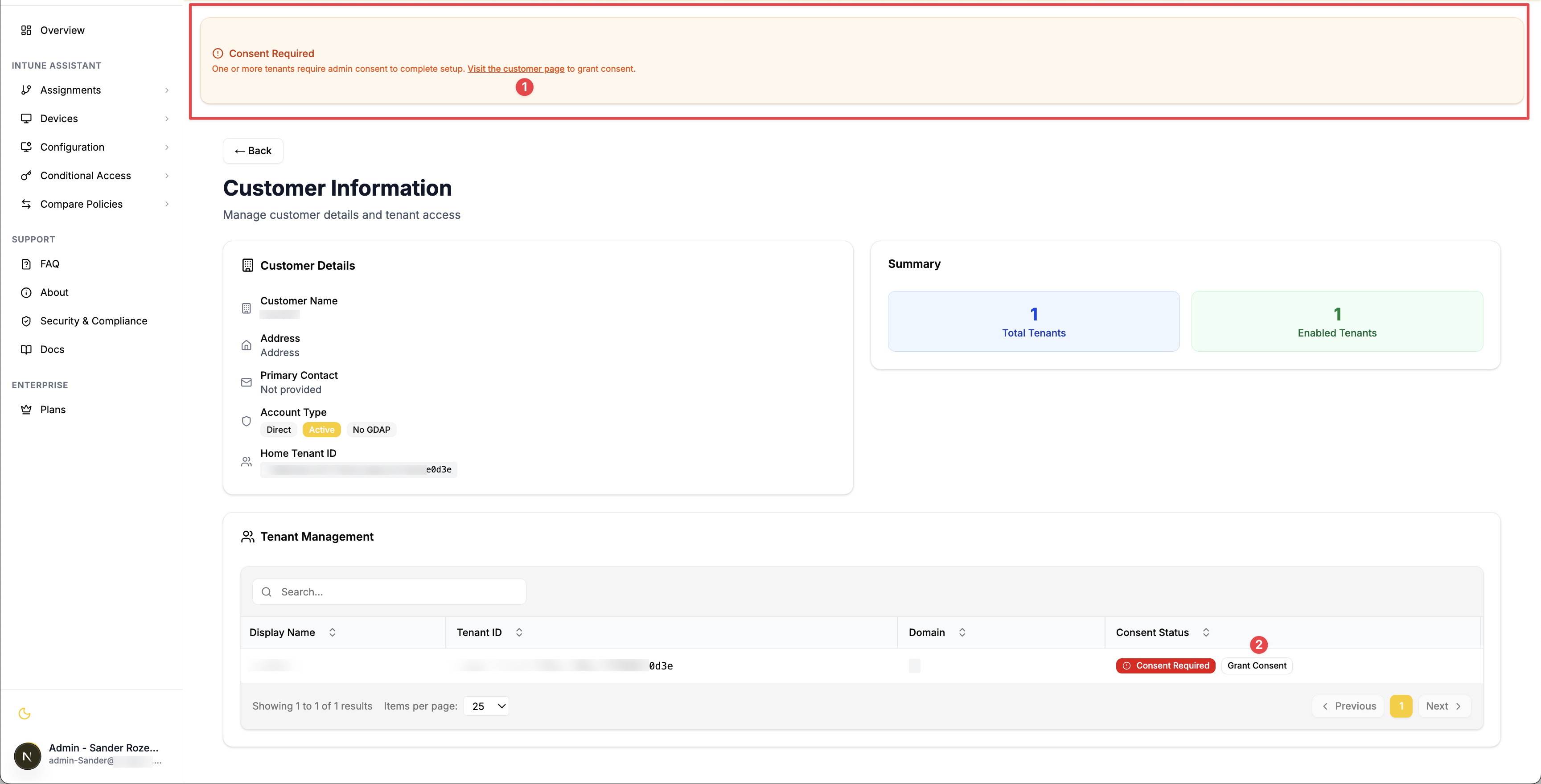
You'll see Consent Required (1) at the top of your page when:
- New permissions have been added to IntuneAssistant
- Your tenant requires admin consent for the updated permissions
Granting Consent
Step 1: Navigate to Customer Page
Click the notification or go directly to the Customer page in your dashboard.
Step 2: Locate Consent Status
Find your tenant in the list and look for Consent Required under the Consent Status column.
Step 3: Grant Consent
- Click the Grant Consent button next to your tenant (2)
- A popup window will open with Microsoft's consent page
- Review the new permissions being requested
- Click Accept to grant the additional permissions
Step 4: Verification
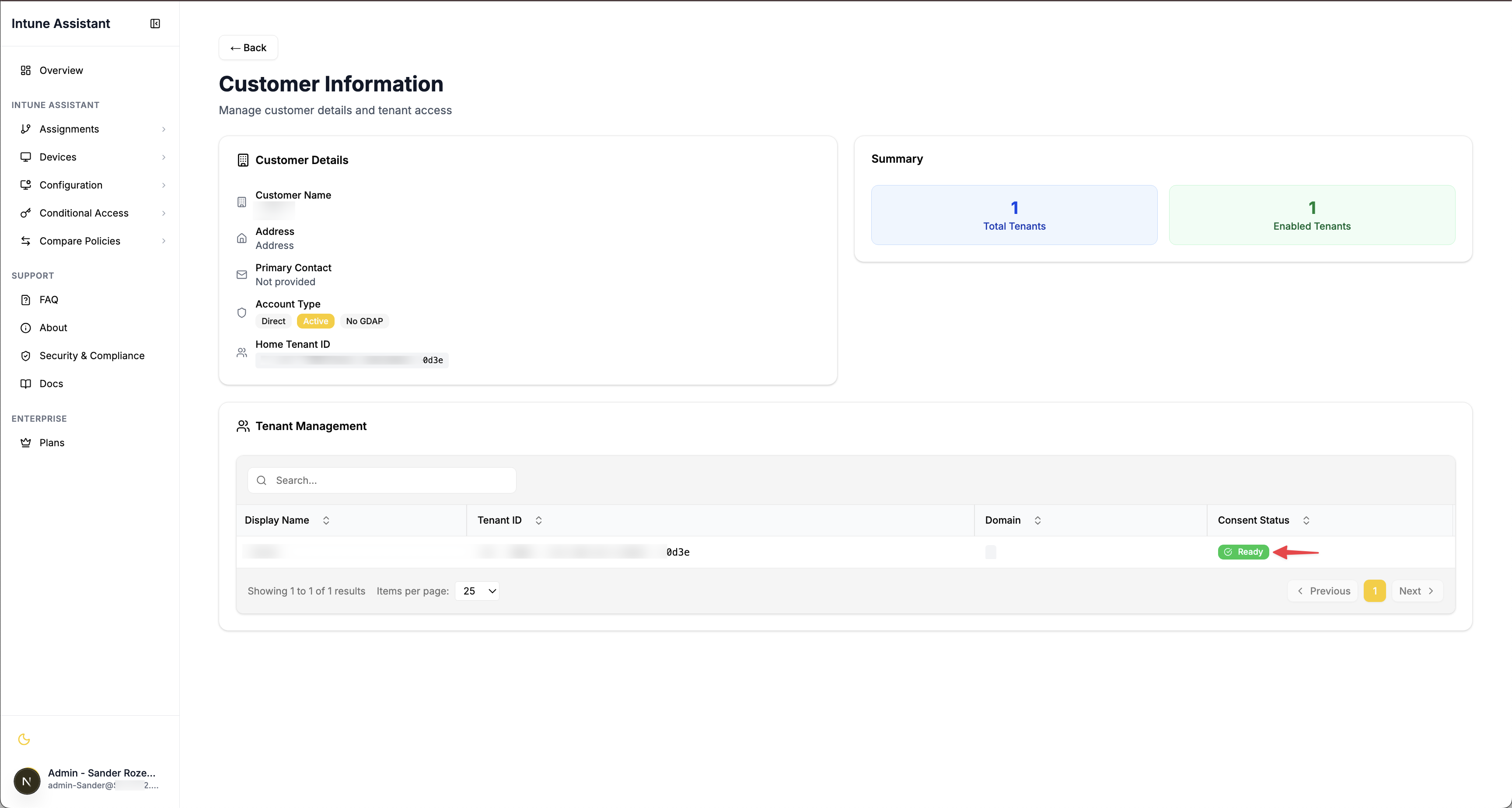
After successful consent, the status will update to Granted and you'll have access to the new features.
Troubleshooting
If consent fails or you encounter issues:
- Ensure you have Global Administrator rights in your tenant
- Check that popup blockers aren't preventing the consent window
- Try refreshing the page and attempting consent again