Backup & Restore
How to backup policy assignments before migration and restore them if needed using the Assignment Manager.
Backup & Restore Assignments
Before making any assignment changes, Assignment Manager provides a built-in backup system to ensure you can always restore to the previous state if needed.
Safety first approach
The backup feature creates a complete snapshot of your current assignment state before any migration begins.
Creating Backups
1) Start the Backup Process
Before any migration, click the "Backup Ready Policies" button in the Assignment Manager interface.
The backup process will:
- Export all policy assignments
- Include assignment filters and targeting
- Package everything into a downloadable ZIP file
2) Download & Store the Backup
Once the backup completes, download the ZIP file to a secure location.
Recommended naming convention:
policy-backups_tenantID_-YYYY-MM-DD-HHMMSS.zip
Example: intune-backup-2024-01-15-143022.zip
Important
Store backups in a version-controlled location or secure file share. You may need them weeks or months later.
Understanding Backup Contents
The backup ZIP contains JSON files for each policy with complete assignment information. After extracting the ZIP, you'll see a folder structure like this:
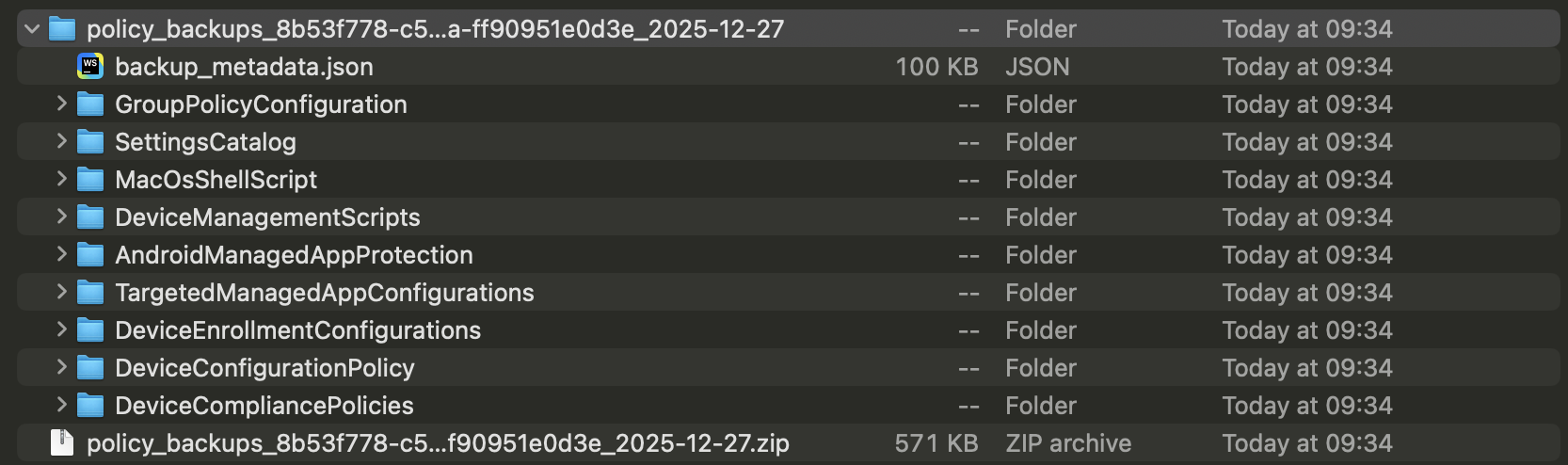
Each JSON file contains:
- Policy metadata and settings
- All current group assignments
- Applied filters (include/exclude)
- Assignment targeting details
Restoring Assignments
3) Identify the Policy to Restore
Extract the backup ZIP file and locate the specific policy you need to restore.
Navigate through the folder structure:
compliance-policies/- Compliance policiesconfiguration-profiles/- Device configuration profilesapp-protection/- App protection policies
4) Access the Microsoft Intune Portal
Currently, restoration must be done through the Microsoft Intune admin center:
- Open Microsoft Intune admin center
- Navigate to the appropriate policy section
- Locate the policy you want to restore assignments for
Why manual restoration?
Direct restoration through Assignment Manager is planned for future releases. Manual import ensures you have full control over what gets restored.
The exported policies are raw JSON data directly from Intune, making it easy to re-import. Be aware that when uploading the JSON file to the Intune Portal will create a new policy with a new policy ID. That means you have to remove the old policy after the new one is created.
Coming soon
We are currently working on a direct restore functionality to avoid this extra step in the future.
Best Practices
Backup Strategy
Before every migration:
- Always create a fresh backup using the backup button
- Store in a secure, accessible location
Recovery Planning
Document your restore process:
- Which policies were changed
- What the previous state looked like
- Who can perform emergency restores
- How to validate successful restoration
Test your backups:
- Periodically validate backup file integrity
- Practice restoration procedures in test environments
- Ensure team members know the restoration process
Troubleshooting
Backup Issues
Backup takes too long:
- Large tenants may require 10+ minutes
- Don't close the browser during backup
- Consider backing up policy types separately
Backup file is empty or corrupt:
- Check browser download settings
- Verify sufficient permissions in Intune. Check the permissions documentation.
- Try again during low-usage periods
Restoration Issues
Can't find the right policy in backup:
- Search by display name in the JSON files
- Check policy type folders carefully
- Use the policy GUID if display names changed
Assignments don't match after restore:
- Verify group names haven't changed
- Check if filters still exist with same names
- Confirm you have the right backup version
Future Enhancements
Coming soon
Direct restore functionality - Import backup files directly through Assignment Manager without manual portal work.
Selective restore - Choose specific assignments to restore rather than full policy restoration.
Automated validation - Automatic comparison between backup and current state.